Turn to the Remote app or plug in an Ethernet cable for a quick workaround
The Download
- First, connect your Apple TV to your modem or router with an Ethernet cable.
- Next, use the iOS Remote app or a third-party Android app to sync with your Apple TV.
-
Disconnect the Ethernet cable, and then go to
Settings
>
Network
>
Wi-Fi
and select your network.
This article shows you how to connect your Apple TV to Wi-Fi without the remote. Instructions apply to devices running tvOS 9 and later.
How to Connect an Apple TV to Wi-Fi With No Remote
If you’ve misplaced your Apple TV remote (or Siri Remote), you can still control your streaming box, but you’ll need to take some extra steps.
Here’s how to do it whether you have an iPhone or an Android device.
On an iPhone
Connect your Apple TV to your router with an Ethernet cable using the port on the back of the box.
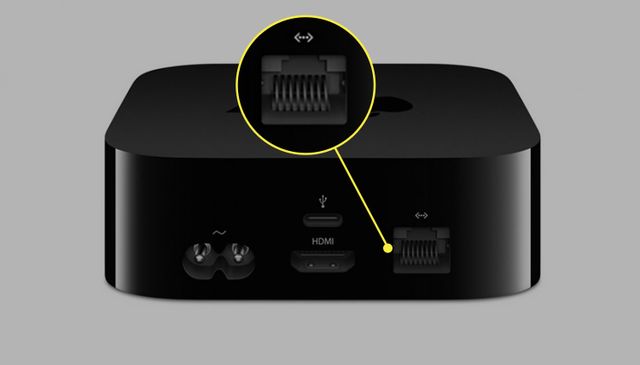
Ensure your phone is connected to the Wi-Fi network associated with your router.
Open
Control Center
.
Expert Tip: Tip
On iPhones running iOS 12 or later, swipe down from the upper-right corner of your screen. For iOS 11 and earlier, swipe up from the bottom of the screen.
If
Apple TV Remote
icon isn’t there, tap the
plus sign
>
Add a Control
>
Remote
.

To access the Remote app, open your
Control Center
.
Select the
Apple TV Remote
icon.
Choose your Apple TV from the menu at the top.

A four-digit code will appear on your TV screen. Enter it on your phone, and the Remote app will pair with the Apple TV. You can now control your Apple TV with your phone.
Disconnect the Ethernet cable.
On the Apple TV, select
Settings
from the Home screen.

Go to
Network
.

Select
Wi-Fi
.

Choose your Wi-Fi network and enter the password, if applicable.
Your Apple TV will connect to the network, and you can continue using your remote app to control it.
On an Android Device
If you’re running an Android device, the instructions are similar, but they’ll start differently.
Because Android doesn’t have an Apple-made remote app, you’ll need to download a third-party option from the
Google Play Store
.
The process of syncing the app to your Apple TV will be about the same.
Make sure your phone is connected to the same network associated with your router, and then you’ll receive a code to enter on your phone. Then, start with Step 9 above.
Alternatively, Use Ethernet
If it’s convenient, it may be better to skip Wi-Fi altogether and keep your Apple TV connected to your router with a wired connection.
An
Ethernet
cable can provide a faster, more stable connection than wireless, and it’s less vulnerable to interference than Wi-Fi.
If your router is close to your TV, consider this option. You can still use a remote app to control your Apple TV.
Related:
How to Pair an Apple TV Remote
Frequently asked Questions
How do I connect an Apple TV to hotel Wi-Fi?
Traveling with an Apple TV
and connecting to the hotel’s Wi-Fi can be challenging since it doesn’t have a built-in web browser. Go to
Settings
>
Network
>
Wi-Fi
and see if it detects a captive network; if so, follow the instructions on your iOS device. Or, the hotel’s tech team may be willing to add your Apple TV to the network manually using its
MAC address
.
How do I change Wi-Fi on an Apple TV?
To change your Apple TV’s Wi-Fi network, open
Settings
, and select
Network
>
Wi-Fi
. When nearby networks appear, select a new Wi-Fi network. Enter the new network’s password and select
Done
>
OK
.
How do I forget a Wi-Fi network on an Apple TV?
To
forget a Wi-Fi network on an Apple TV
, open
Settings
and select
Network
>
Wi-Fi
. Open the Wi-Fi network you want to forget and select
Forget Network
. Your Apple TV will no longer automatically connect to that network in the future.
Read the original article on
Vmeetsolutions