Quick Links
-
The AI() Function Syntax
-
How to Utilize the AI() Function
-
Examples of the AI() Function
-
Capabilities Limitations of This Feature
-
AI-Powered Google Workspace
Google’s AI feature integrates Gemini-powered language models directly into your spreadsheet cells without requiring any additional extensions. Using this capability, you can create new text, condense large amounts of information, classify items, or even assess emotional tones by simply entering a basic command.
The AI function in Google Sheets is part of
Google Workspace Labs
and is powered by Google’s Gemini AI. If Ask Gemini is enabled in your Google Sheets, you can easily access the AI function in your spreadsheets.
The AI() Function Syntax
The AI function has two arguments:
=AI(prompt, [reference_cell_or_range])
Where
-
prompt
(required): A text string in quotes that tells the AI what you want. For example, you can type a simple prompt like “Summarize this review in one sentence” or anything else you need. -
reference_cell_or_range
(optionally): This indicates the cell (or group of cells) where the data that the AI will process is located.
If you omit the reference, the AI will solely rely on the prompt for context, often producing impressively helpful outcomes while disregarding all cell content. Moreover, this function outputs plain text, enabling you to combine it with other formulas (for instance, enclose it within LEFT() to extract merely the initial several words).
How to Utilize the AI() Function
Launch or open a Google Sheet, ensuring you’re signed in with an account that can access Gemini for Workspace. Navigate to the specific cell where you intend to utilize the AI feature. Next, start typing
=AI()
And begin by entering your prompt. Feel free to use everyday language without worrying about grammar. Indicate the timeframe for your data or point out specific cells as references. This information will enable the AI to produce meaningful insights.
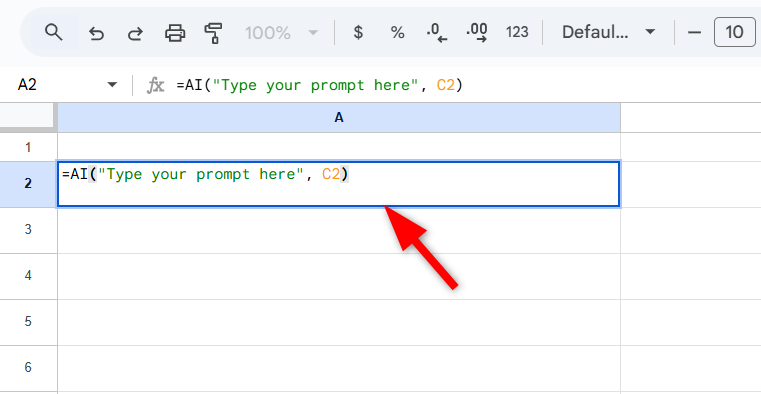
Once you press Enter, you’ll see a “Generate and insert” button appear on the sheet. Simply click this button, and your AI-generated response will be inserted into the cell designated for you within the version history.
You can also drag the fill handle to apply the AI function across multiple rows or columns, allowing batch processing of data. Plus, you can review the output, and if you want a fresh take, hit Refresh and insert—it’ll rerun the prompt and generate a new answer.
Examples of the AI() Function
You can use the AI function to perform three main tasks: generating text based on your data, summarizing your sheet, and automatically sorting or classifying entries. You can also perform simple calculations on rows and columns, such as adding and subtracting, but advanced calculations are not supported.
Not only that, but you can even interpret the contents of a cell to determine sentiment or other feelings, such as identifying the tone of feedback reviews. For example, suppose you have a list full of raw customer feedback from your online store or surveys, and you need to determine which comments are positive, negative, or neutral without reading the full feedback to save time. You can enter this simple prompt with the AI function:
=AI(“Is this customer feedback positive, negative, or neutral?”, A2)
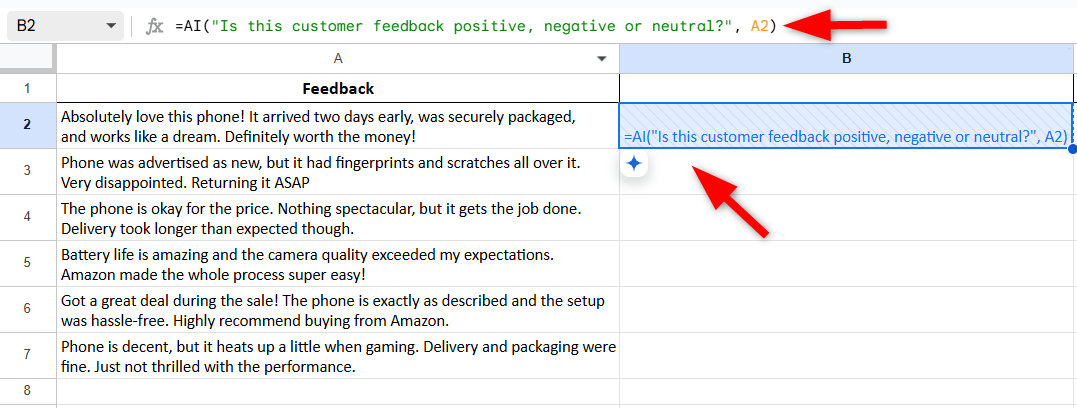
You immediately receive a Positive, Negative, or Neutral judgment, enabling you to organize your list and address important comments more swiftly. To extend this classification to all subsequent feedback entries, just pull the fill handle downward and click the Generate and insert button.
An additional task you could undertake is sorting your information according to your specifications by referencing other cells. Say column C includes various expenditure details like airfare, lunch meetings, and software subscriptions; if you wish to classify these entries as Travel, Office, or Other categories for your financial department, just apply this method.
=Ai(“Categorize this cost under Travel, Office, or Other”, D3)
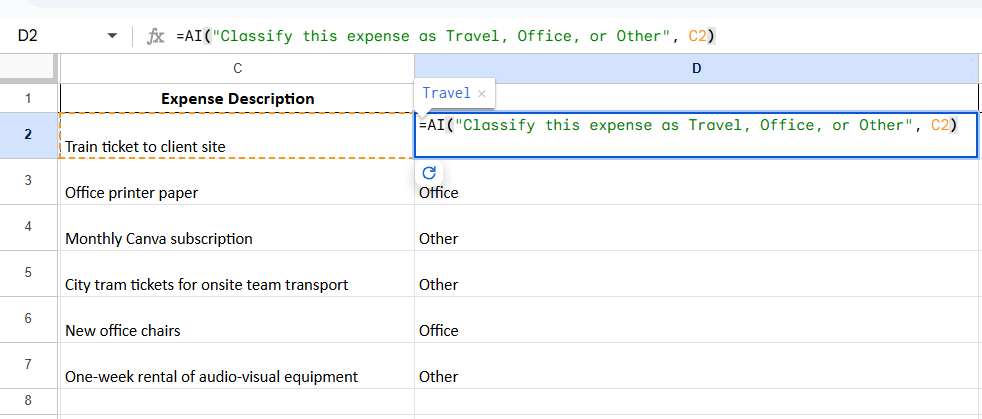
The AI system tries to label or classify every item, yet it might sometimes overlook certain ones. If necessary, you have the option to recreate the output or refine your instructions to enhance precision. Given that this feature remains under development, sporadic mistakes should be anticipated; unclear directives along with irregular information could potentially disorient the model.
Like all language models, errors such as misconceptions, incorrect interpretations, or absurd responses may happen. It’s always best to examine the outcomes closely, particularly when dealing with important jobs, and confirm the accuracy of the information instead of taking it at face value.
In addition to these duties, you can produce summaries of texts, craft slogans based on provided content, and carry out straightforward computations such as basic additions within cells.
=AI(“Sum the values in these cells”, A1:A5)
There is no privacy guarantee for sensitive data. Remember that AI queries go through Google’s servers, so avoid sending personal or confidential information in prompts.
Capabilities Limitations of This Feature
There are many things this function can’t do. For example, its scope is limited to your prompt and referenced data. It doesn’t scan your entire sheet or pull in external data on its own. Additionally, it cannot connect to the live internet to fetch real-time stock prices, check the weather, or scrape data from websites.
When you generate an analysis, it becomes a static snapshot. If the underlying data changes, you must re-ask the AI to update the result. You can also not build charts, graphs, or tables.
The AI feature in Google Sheets comes with both short-term and long-term creation limits; when the long-term cap is hit, generation halts for 24 hours. It supports generating content for up to 200 chosen cells simultaneously, enabling further processing of more cells after the first round finishes.
AI-Powered Google Workspace
Google’s artificial intelligence feature is a component of an extensive plan to incorporate AI throughout its Workspace applications.
Upcoming features
Similar to Help Me Analyze in Sheets, Audio Summaries in Docs, and Workflow Automation focus on simplifying data analysis, enhancing content review, and streamlining task management. These features are intended to make everyday activities more efficient, decrease manual labor, and increase overall productivity.
Enabling natural language interactions in Google Sheets allows AI to make data analysis more user-friendly and reachable— even for those without technical skills. As these tools advance, they will reshape professional approaches to handling data, highlighting simplicity, efficiency, and practical conclusions.
Here’s my suggestion: Should this feature be accessible within your Google Sheets, go ahead and test it out! Begin with an easy job to observe just how effectively it assists you in streamlining your workflow process.